Phishing QR Codes Hidden in PDF Files | SeguraDoc
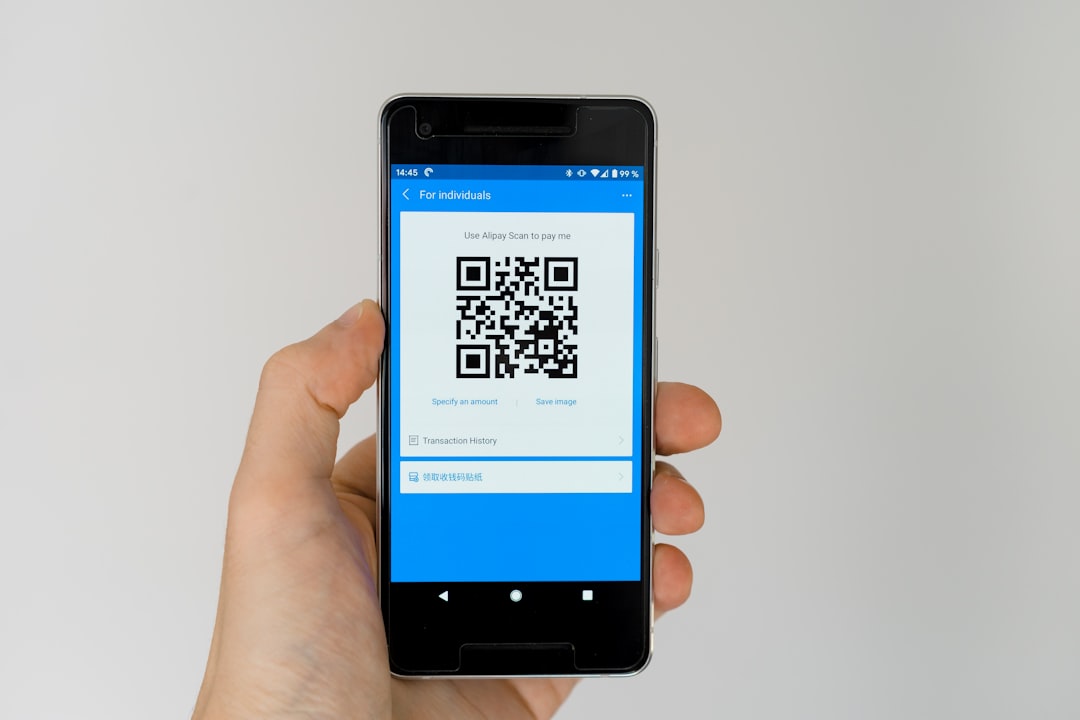
How to Spot Phishing QR Codes Hidden Inside PDF Files
A QR code inside a PDF can look completely routine — printed next to a company logo on an invoice or a delivery note — and still send you to a fake website built to steal your details. The safest response to an unexpected QR code is not to scan it, and to inspect the document first. SeguraDoc transforms untrusted PDFs in isolated processing into safe, inert, OCR-searchable documents rebuilt from page snapshots. It does not claim universal malware or phishing detection — it lets you view a suspicious PDF as a safe copy so you can decide what to do without opening the original or scanning anything.
The new face of phishing: QR codes in PDFs
Phishing keeps evolving. As people grew wary of suspicious links in email text, attackers moved the link out of sight — into a QR code embedded in a PDF. The technique has a name: “quishing” (QR phishing). It works because scanning a code has become an everyday habit, and a code printed on an otherwise ordinary-looking document doesn’t trigger the same caution as a raw link.
The QR code is convenient for attackers for another reason: it moves the risky action onto your phone, which may be outside whatever protections your work computer or email filter provide.
How a QR-code phishing attack works
A typical phishing PDF looks like a simple document — a company logo and a QR code labeled something like “Scan to view your invoice.” Scan it, and instead of an invoice you land on a fraudulent page that imitates a real bank, retailer, or delivery service.
From there, attackers may try to:
Capture your login details
Prompt you to “confirm” a payment
Collect other sensitive personal or company information
Push you toward installing something you didn’t intend to
Because the danger lives in what happens after you scan — on a page that can look convincing — even careful people can be caught out. The document itself may contain nothing that looks alarming at a glance.
How SeguraDoc lets you inspect a suspicious PDF safely
SeguraDoc lets you open and look inside a suspicious PDF without executing the original file. When you upload a document:
Isolation — it is opened inside an isolated environment, separated from your device and network.
Snapshot rendering — each page is converted into a clean static image, so no active or interactive content can run.
Inert rebuild — a new PDF is reconstructed from those snapshots, with no active JavaScript, embedded files, or launch actions.
OCR text — the text on each page is extracted so the rebuilt copy stays searchable and readable.
AI summary — a short, plain-language summary tells you what the document is about before you decide what to do next.
The important part for QR-based attacks: you’re viewing a safe, rebuilt copy on a screen, not scanning a code with your phone camera and not running the original file. That gives you room to look at the document — its sender, its wording, the context around the code — and decide not to scan, rather than reacting in the moment.
Habits that keep you safer
A safe inspection tool works best alongside a few sensible habits:
Don’t scan QR codes from unknown or unexpected sources.
Check the sender’s email address against the organization it claims to be.
Be cautious with unexpected attachments, even ones that look like invoices or receipts.
Inspect the file first — upload it to SeguraDoc and review the rebuilt copy before taking any action.
Privacy
For current information about file handling and retention, review SeguraDoc’s privacy policy before uploading a document.
What safe inspection does — and doesn’t — do
SeguraDoc’s role is to make a file inert and safe to view — not to judge a QR code’s destination for you. Because each page is rebuilt from a static snapshot, active content can’t run in the copy you read, and viewing that copy doesn’t scan the code. It is not marketed as a tool that automatically detects phishing or decodes and verifies where a QR code leads; a rebuilt copy will still show the code and any misleading text — it simply can’t act on them. The AI summary is a reading aid and can miss nuance. Use the safe copy to inspect the document, and use your own judgment before scanning any code or trusting any sender.
Don’t scan it — inspect it first
Got a PDF with a QR code you weren’t expecting? Don’t scan it to find out where it goes. Upload it to SeguraDoc, read a safe, rebuilt copy, and decide from there.